

f you’ve ever thought, “I want a website, but I don’t know anything about coding or design,” this guide is for you.
The truth is, in 2026, creating a professional website is easier than ever. You don’t need to be a developer, designer, or tech expert. With the right tools and a simple process, anyone can launch a website in a few hours.
In this beginner-friendly guide, we’ll walk you through how to create a website with zero knowledge, using practical steps, easy language, and tools that do the heavy lifting for you.
Why Every Business or Personal Brand Needs a Website
Before we jump into the steps, let’s understand why a website matters

A website helps you:
Build trust and credibility — People search online before buying anything.
Showcase your services or products — Your website works like a 24/7 salesperson.
Get more customers through Google — A website helps people discover you through search engines.
Control your brand — Unlike social media, your website is fully yours.
Whether you’re a freelancer, small business owner, student, or creator, having a website gives you a professional online presence.
Step-by-Step: How to Create a Website With Zero Knowledge
This process is beginner-friendly and requires no coding.
Step 1: Decide the Purpose of Your Website
Start by asking yourself:
Do I want a business website?
Do I want a portfolio website?
Do I want a blog?
Do I want an online store?
Do I want a personal website?
Your purpose will help you choose the right design and pages.
Common website pages for beginners
Home
About
Services / Products
Blog
Contact
Tip: Keep it simple. You can always add more pages later.
Step 2: Choose a Domain Name
Your domain name is your website address (forexample:akashmarketer.com).
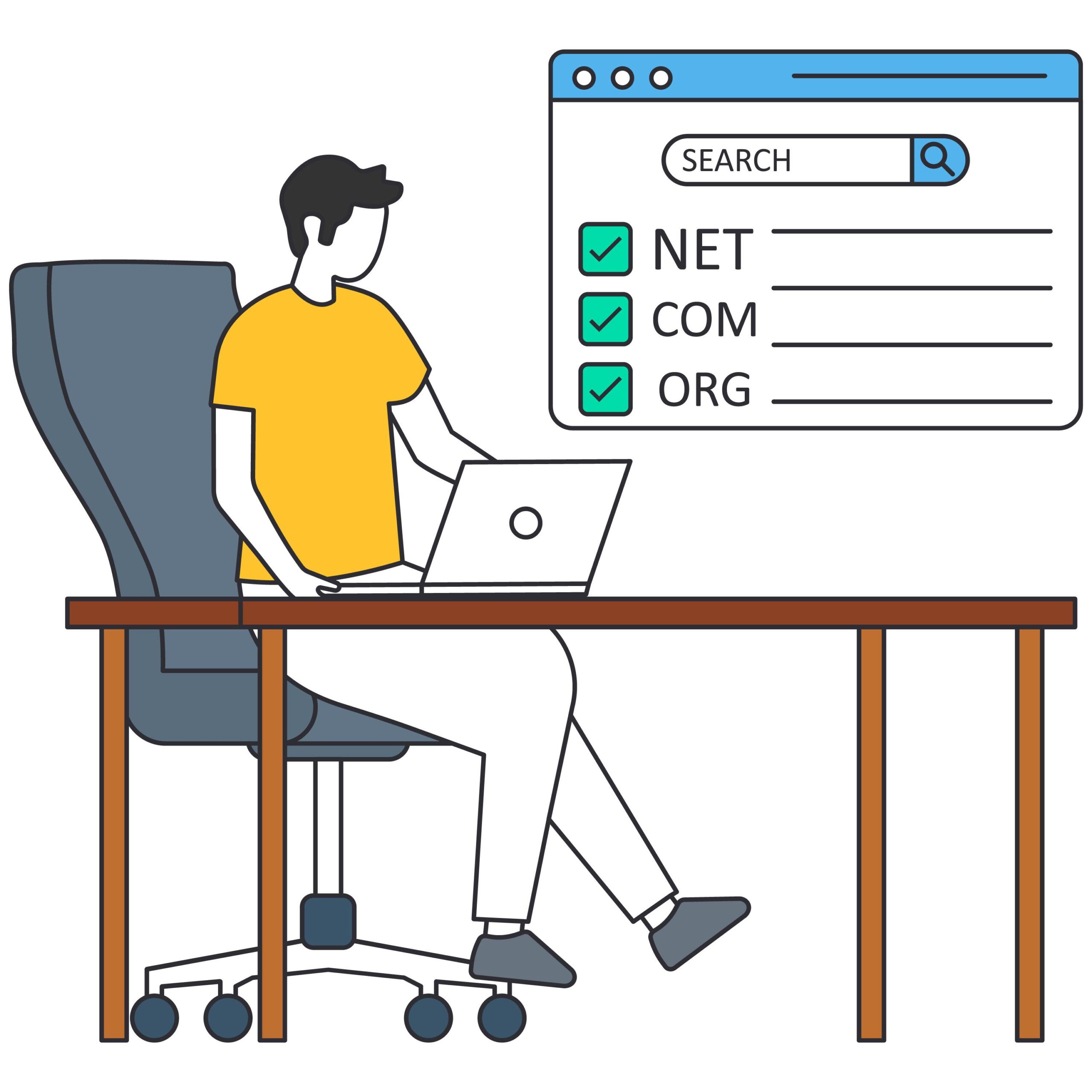
How to choose a good domain name
Keep it short and easy to remember.
Use your brand name or business name.
Avoid numbers and special characters.
Prefer .com if available.
Where to buy a domain
You can buy a domain from providers like:
- GoDaddy
- Namecheap
- Hostinger
- Google Domains alternatives
Domains usually cost around ₹700–₹1,200 per year.
Step 3: Get Web Hosting
Web hosting is the space where your website files are stored online.
For beginners, choose a hosting provider that offers:
One-click WordPress installation
Free SSL certificate
Good customer support
Fast loading speed
Beginner-friendly hosting options
Hostinger (affordable and easy for beginners)
- Bluehost
- SiteGround
BigRock (popular in India)
Most hosting plans cost ₹2,000–₹5,000 per year.
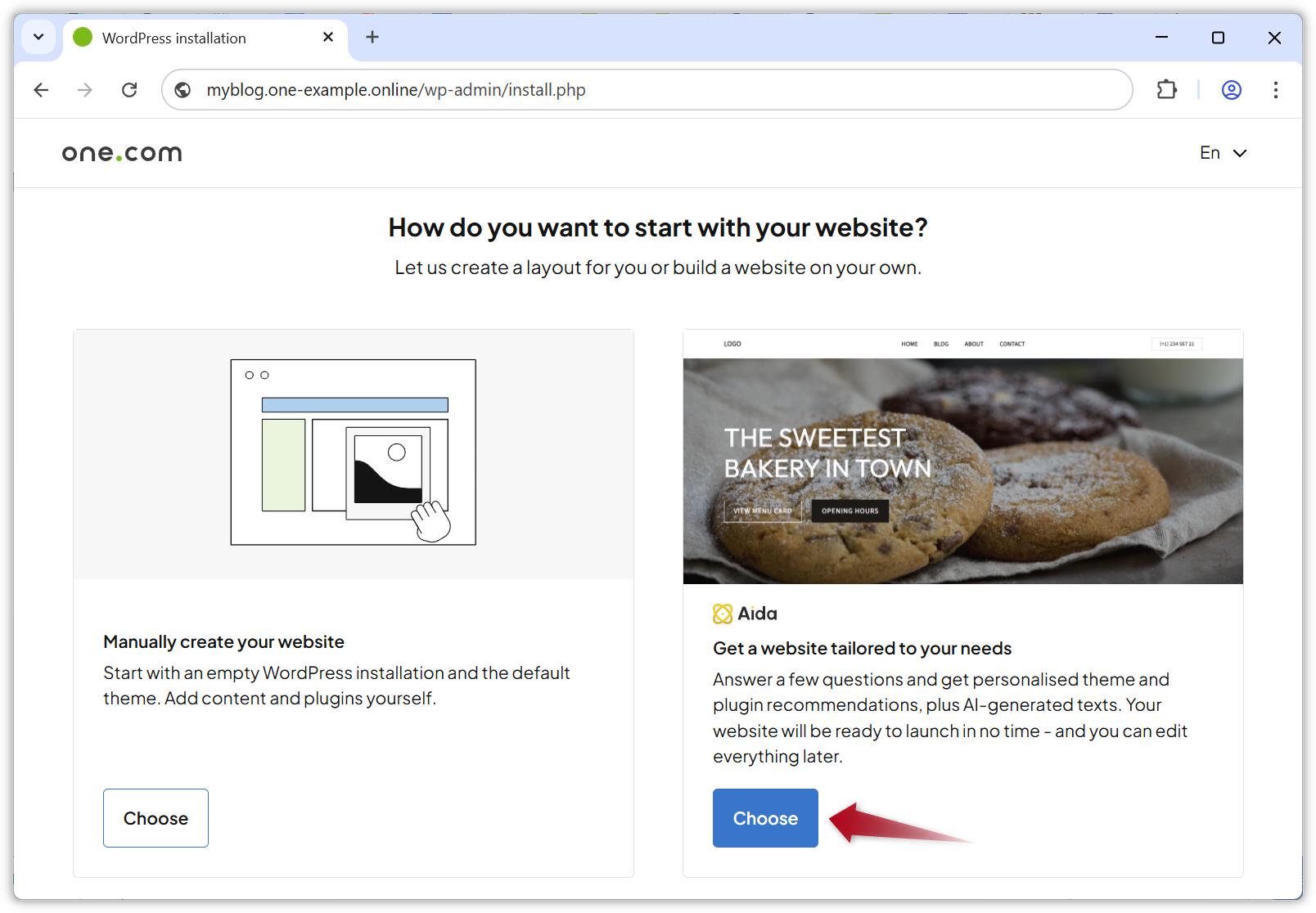
WordPress powers more than 40% of websites worldwide because it’s easy and flexible.
Most hosting providers offer 1-click WordPress installation.
How to install WordPress
Log in to your hosting account.
Find WordPress Installer or Auto Installer.
Click Install WordPress.
Choose your domain name.
Set a username and password.
Click Install.
That’s it! Your website is now live online.
Step 5: Choose a Simple Website Theme
A theme controls the design of your website. You don’t need to design anything from scratch.

Best free themes for beginners
- Astra
- GeneratePress
- OceanWP
- Hello Elementor
How to install a theme
Go to Appearance → Themes in WordPress.
Click Add New.
Search for the theme name.
Click Install and then Activate.
Tip: Choose a clean, fast theme. Simple designs look more professional.
Step 6: Build Your Pages With Drag-and-Drop Tools
Now comes the fun part: creating your pages.

You can use a free page builder like Elementor to design pages visually — no coding required.
Create these essential pages
1. Home Page
Your homepage should answer:
Who are you?
What do you do?
How can visitors contact you?
Include a clear headline, short description, services, and a call-to-action button.
2. About Page
Share your story in a human, relatable way. People connect with people, not just businesses.
3. Services Page
List your services clearly. For example:
SEO Services
Social Media Marketing
Website Development
Google Ads Management
4. Contact Page
Add:
Contact form
Email address
Phone number
WhatsApp link
Social media links
How to create a page in WordPress
Go to Pages → Add New.
Enter the page title.
Click Edit with Elementor (if installed).
Drag and drop sections, text, images, and buttons.
Click Publish.
Step 7: Add Important Plugins
Plugins add extra features to your website.

Essential plugins for beginners
Plugin | Purpose |
|---|---|
| Elementor | Drag-and-drop page builder |
| Yoast SEO | Helps optimize your site for Google |
| WPForms | Create contact forms easily |
| LiteSpeed Cache | Improve website speed |
| Wordfence Security | Protect your website from attacks |
How to install a plugin
Go to Plugins → Add New.
Search for the plugin name.
Click Install Now.
Click Activate.
Step 8: Make Your Website Mobile-Friendly
More than half of website visitors come from mobile phones.

Most modern themes are already responsive, but you should still check:
Open your website on your phone.
Check if text is readable.
Make sure buttons are easy to tap.
Ensure images fit properly.
In Elementor, you can adjust designs separately for mobile view.
Step 9: Optimize for SEO (So People Can Find You on Google)
SEO stands for Search Engine Optimization. It helps your website appear in Google search results.

Beginner SEO checklist
Use keywords naturally — Include phrases like how to create a website, website for beginners, and create a website with zero knowledge in your content.
Write clear page titles — Example: “Create a Website in 2026 | Beginner’s Guide”.
Add meta descriptions — A short summary that appears in Google results.
Use headings (H1, H2, H3) — This makes content easier to read for both users and Google.
Compress images — Smaller images make your site load faster.
Create helpful content — Google rewards websites that genuinely help users.
Pro tip: Don’t stuff keywords everywhere. Write naturally for humans first, then optimize for search engines.
Step 10: Publish and Share Your Website
Once your pages are ready:
Double-check spelling and links.
Test your contact form.
Make sure your homepage is set correctly in Settings → Reading.
Click Publish.
Now share your website on:
Instagram
Facebook
LinkedIn
WhatsApp
Google Business Profile
Email signature
Your website is officially live!
How Much Does It Cost to Create a Website?
Here’s a realistic beginner budget:
Item | Estimated Cost (Per Year) |
|---|---|
Domain Name | ₹700–₹1,200 |
Web Hosting | ₹2,000–₹5,000 |
Premium Theme (optional) | ₹0–₹5,000 |
Plugins (optional) | ₹0–₹5,000 |
| Total | ₹3,000–₹10,000/year |
You can start with under ₹5,000 per year using free themes and plugins.
Common Mistakes Beginners Make
1. Trying to make the website perfect
Your first website doesn’t need to be perfect. Launch first, improve later.
2. Using too many plugins
Too many plugins can slow down your site. Install only what you need.
3. Ignoring mobile users
Always test your site on a phone.
4. Forgetting SEO
A beautiful website is useless if nobody can find it. Basic SEO matters from day one.
5. Not updating the website
Keep WordPress, themes, and plugins updated for security and performance.
Why This Method Works (E-E-A-T Framework)
Google values content and websites that demonstrate Experience, Expertise, Authoritativeness, and Trustworthiness (E-E-A-T). Here’s how this guide aligns with that:
Experience
This guide is based on practical website-building workflows used by real digital marketers and small businesses.
Expertise
We recommend industry-standard tools like WordPress, Elementor, and Yoast SEO, which are widely trusted by professionals.
Authoritativeness
The steps follow best practices used across the web development and digital marketing industry, making the advice reliable and actionable.
Trustworthiness
We focus on transparent pricing, beginner-friendly tools, and realistic expectations — no misleading promises or unnecessary complexity.
Final Thoughts: You Can Build a Website Today
Creating a website no longer requires coding skills or technical knowledge. By following these 10 simple steps, you can build a professional website that looks great, works on mobile, and helps people find you online.

Here’s the quick recap:
Decide your website purpose
Choose a domain name
Buy hosting
Install WordPress
Pick a simple theme
Create essential pages
Use beginner-friendly plugins
Make it mobile-friendly
Optimize for SEO
Publish and promote your site
The best part? You can do all of this without writing a single line of code.If you’re ready to build your online presence, start with one step today — register your domain name and begin your website journey.
SEO Keywords Used Naturally in This Blog
how to create a website
create a website with zero knowledge
website for beginners
how to make a website without coding
WordPress website for beginners
easy website creation guide
build a website step by step
beginner website tutorial
create a professional website
website creation for small business
You can use a free page builder like Elementor to design pages visually — no coding required.
Need Help Building Your Website?
At Akash Marketer, we help businesses and beginners create modern, SEO-friendly websites that grow online visibility and generate leads.
Visit: https://akashmarketer.com/